
Updating Google Routing to exception automated emails
STEP 1 – Login and go to Gmail Settings
Go to your Gmail Administrator settings: http://admin.google.com/
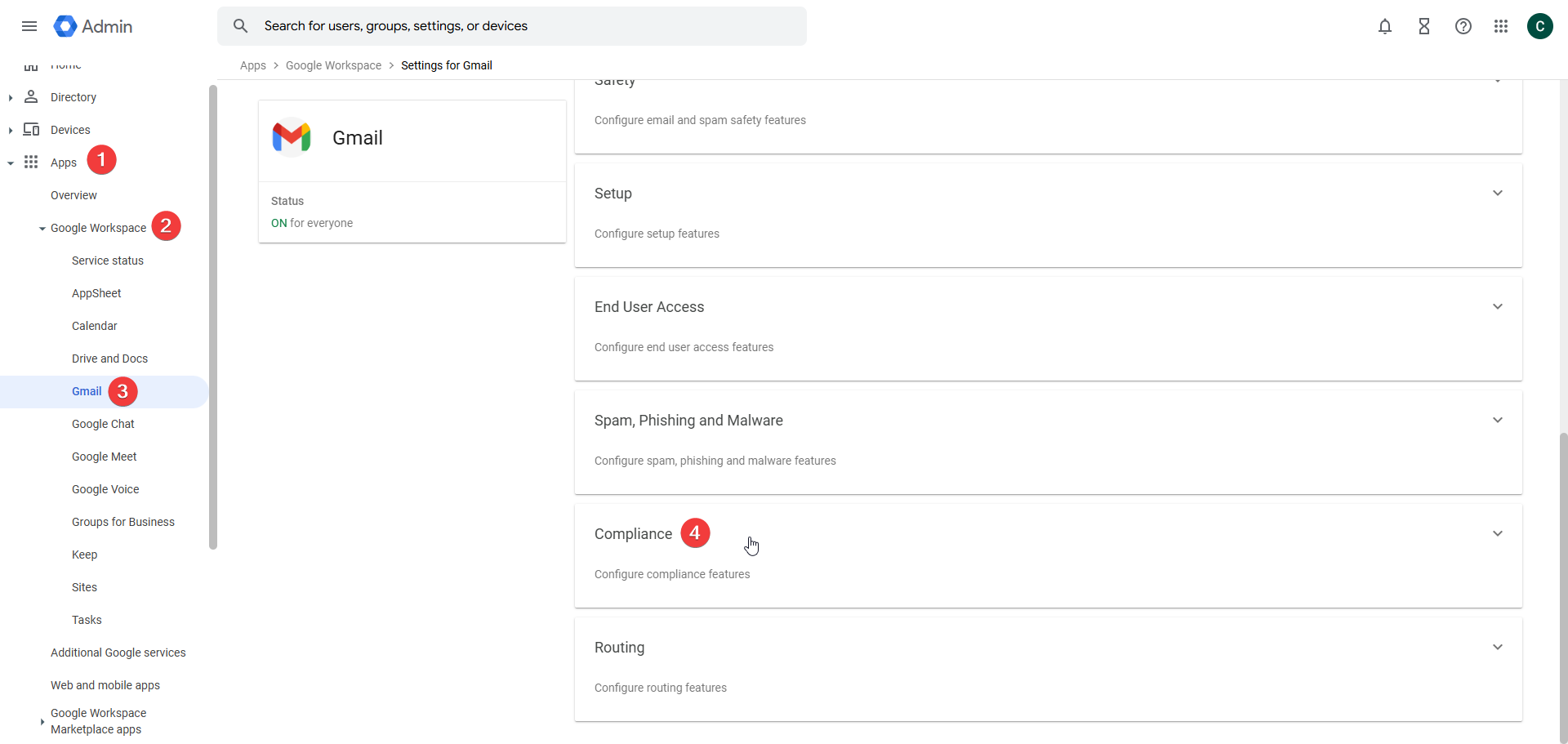
Click Apps-> Google Workspace ->Gmail -> Compliance
STEP 2 – Access the Black Pearl Mail Compliance settings
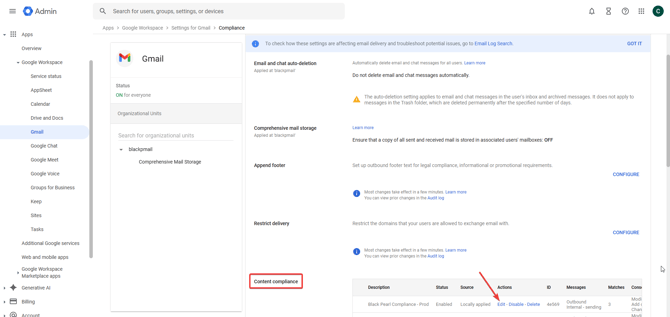
- Scroll down and find the Black Pearl Compliance created previously.
- Click Edit.
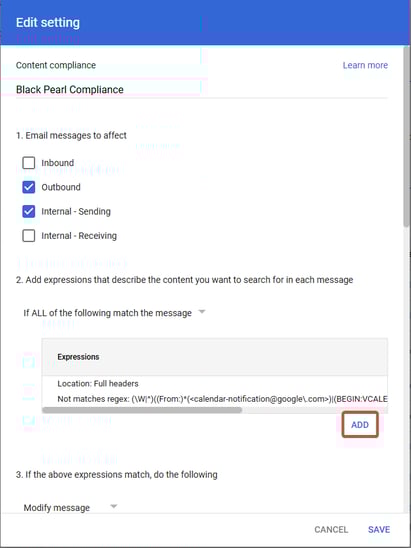
STEP 3 – Update the Black Pearl Mail Compliance settings
- Add an Expression
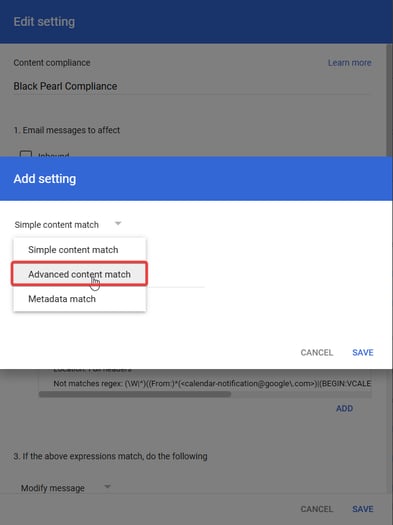
- Select Advanced Content Matching.
- Select Envelope Sender
Not Contains Text
caf_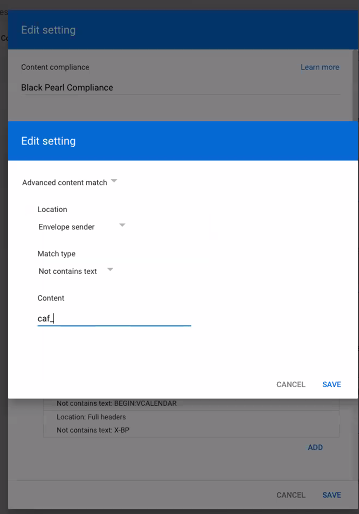
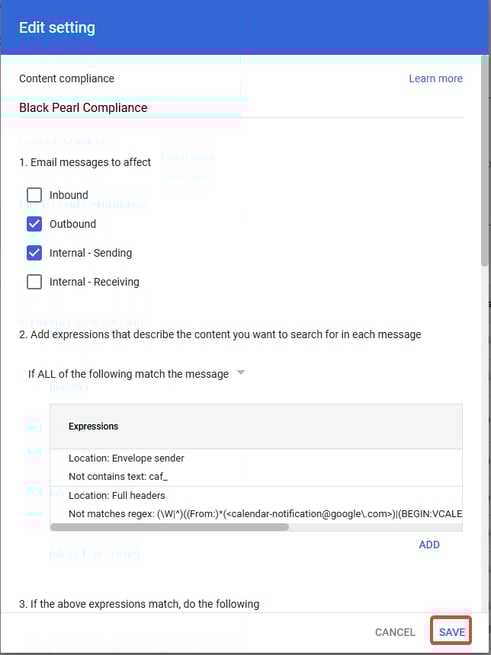
- Then click Save.
- And Save again.
STEP 4 – Test
If possible trigger the automation to send a test email. If you have any issues, email [email protected] and we can assist you further.