Adding a new Domain/Error Adding a Domain
 Note: Each Black Pearl Account can only be linked to either Google or M365 tenants ( not both). For M365 you will need to contact the support team if you need to add a new tenant.Any emails which attempt to route through Black Pearl but are not setup correctly will return a failed to send message stating that Black Pearl has not given permission for that email to be sent.
In order to add an email domain to your account you will need to add the domain to your Black Pearl Mail settings. If this is for a new tenant you will need to setup the routing so that the emails pass through Black Pearl in order to be branded.
Follow the below steps to add a domain into the Black Pearl settings.
 Article for setting up routing for:
  If you get an error that the "domain does not exist" when saving then one of the previously added domains, no longer has a valid MX record and needs to be removed before you will be able to add any new domains. We recommend using https://mxtoolbox.com/ to check the MX records for each added domain if you are unsure which one no longer has an MX record.
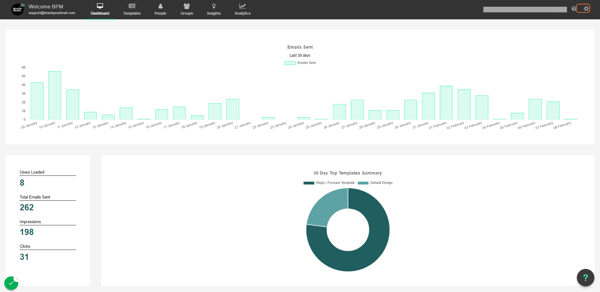
2. Click on the cog in the top right
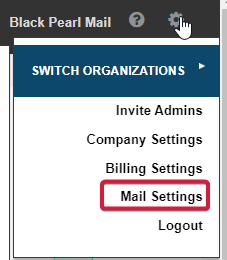
3. Click on Mail Settings
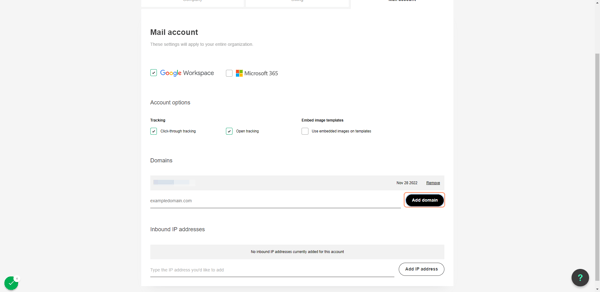
4. Type in the domain to be added
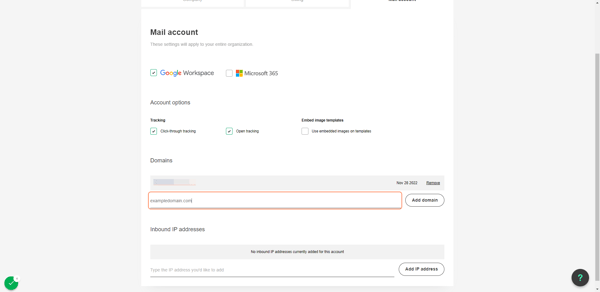
5. Click on Add domain
6. Click on Save
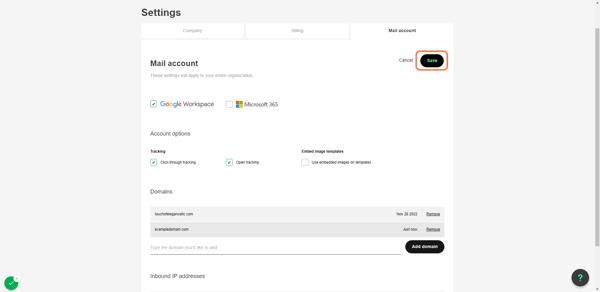
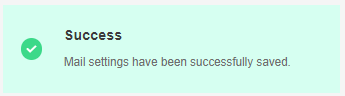
7. Confirm the domain saves