
Exclude users from routing through Black Pearl Mail if they are a member of a group for Google Workspace
These steps will exclude users from routing through the Black Pearl Mail platform who are members of a specified group.
 To carry out the following steps, you will require a Google Workspace account with global administrator permissions.
 STEP 1 – Create a Group
1) Go to your Gmail Administrator settings: http://admin.google.com/
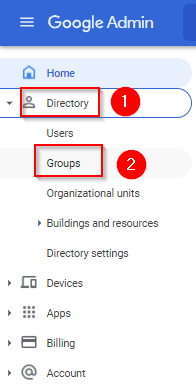
2) From the left-hand menu, select Directory > Groups.
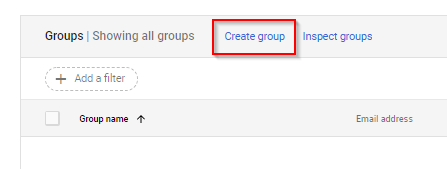
3) Click Create group.
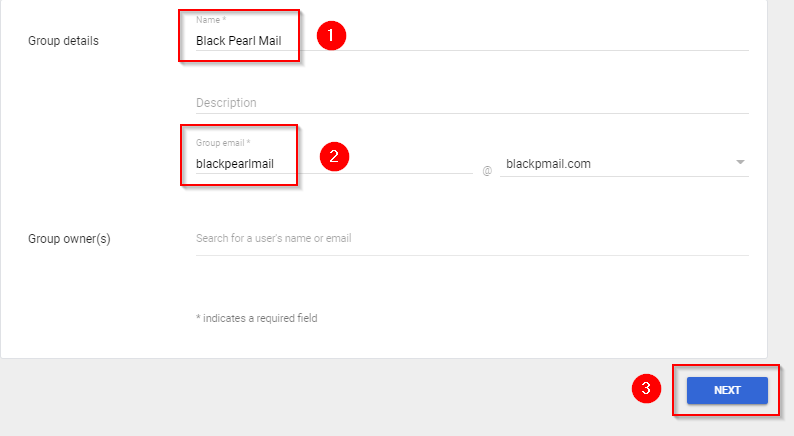
4) Enter Black Pearl Mail as the name, and blackpearlmail as the group email and click Next.
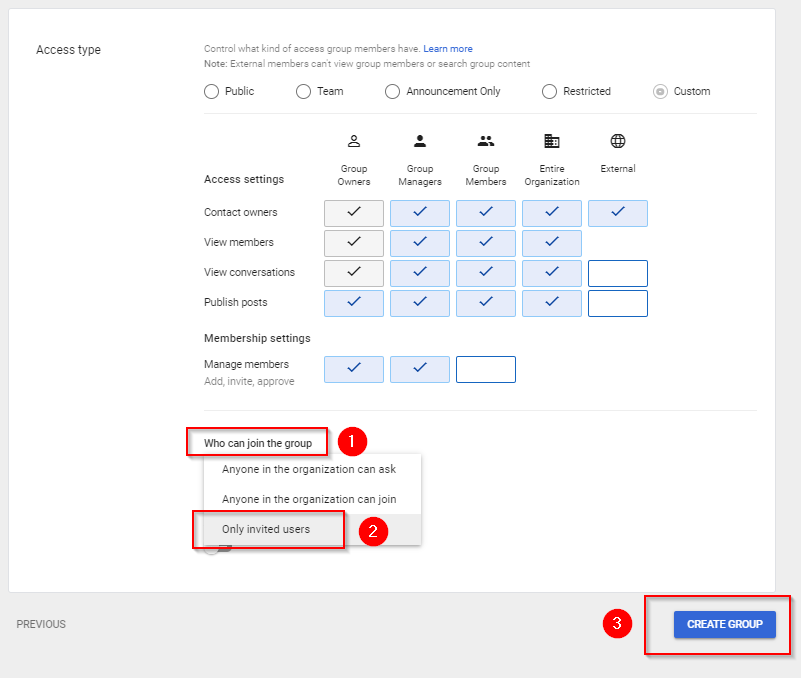
5) Click on the drop-down menu next to Who can join the group and select Only invited users. Click Create group.
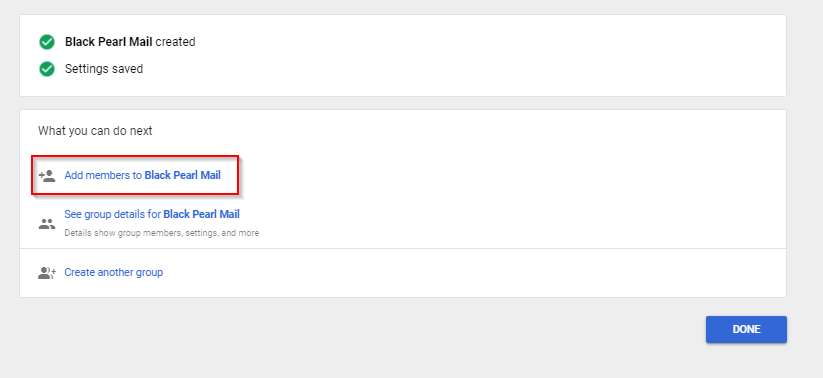
6) Click Add members to Black Pearl Mail.
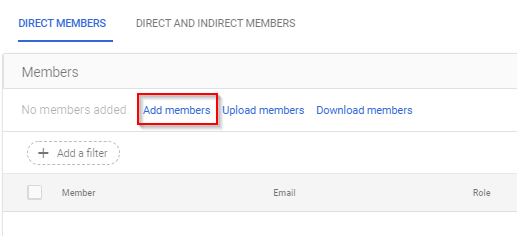
7) Click Add members.
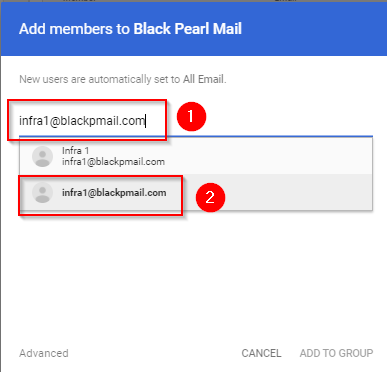
8) This is the part where we add all the members that we don not want to route through Black Pearl Mail. Enter the email address of the user in the search field and then select it from the list.
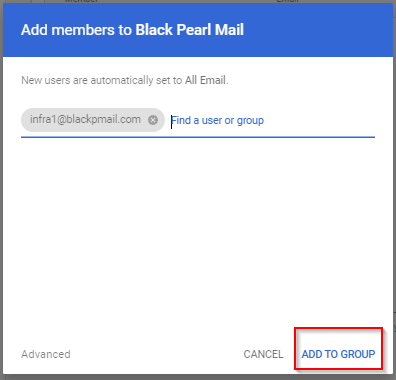
9) Once you have added all the members, click Add to group.
STEP 2 – Update Compliance Settings
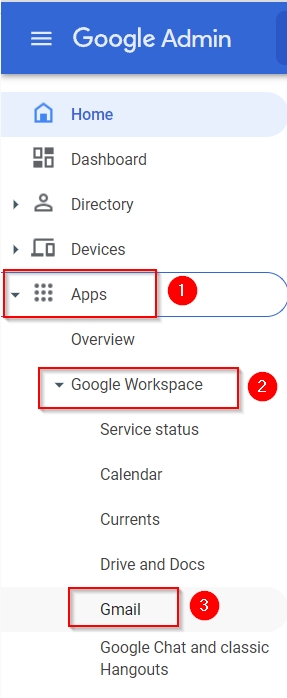
1) From the left-hand menu, select Apps > Google Workspace > Gmail.
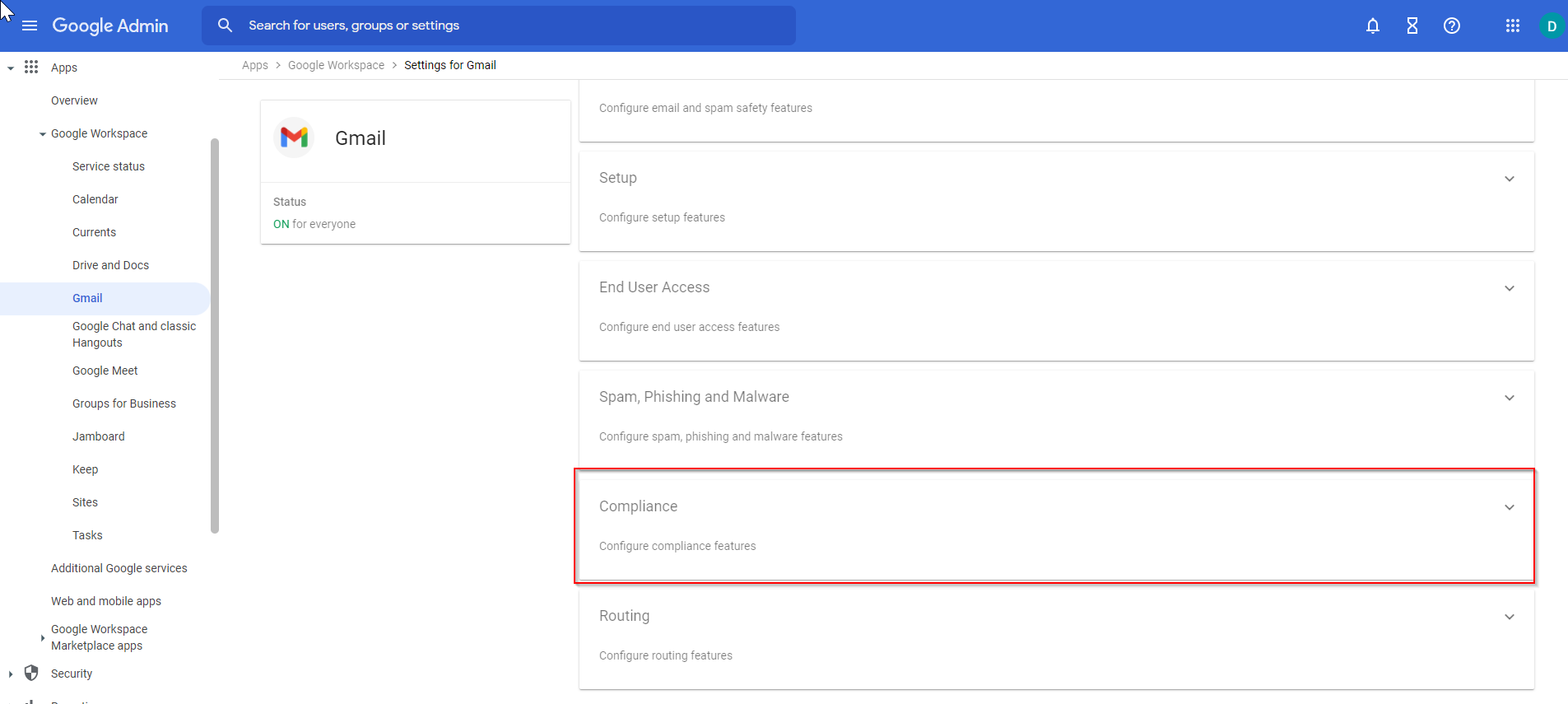
2) Select Content Compliance.
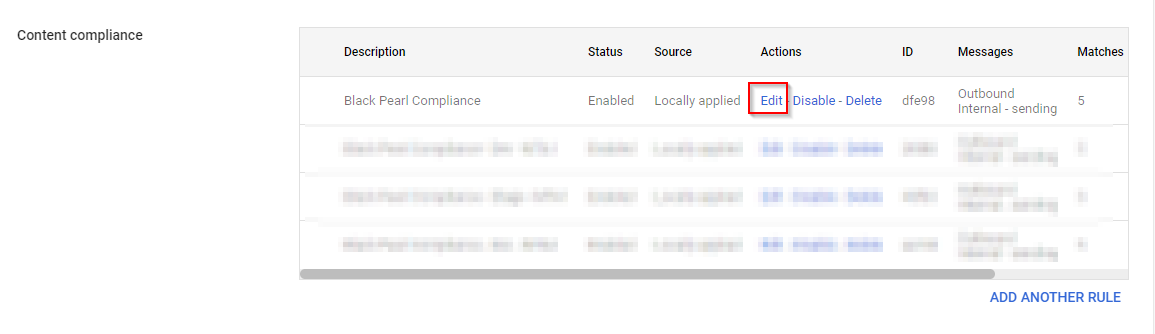
3) Scroll down to the Black Pearl Mail content compliance rule and click edit.
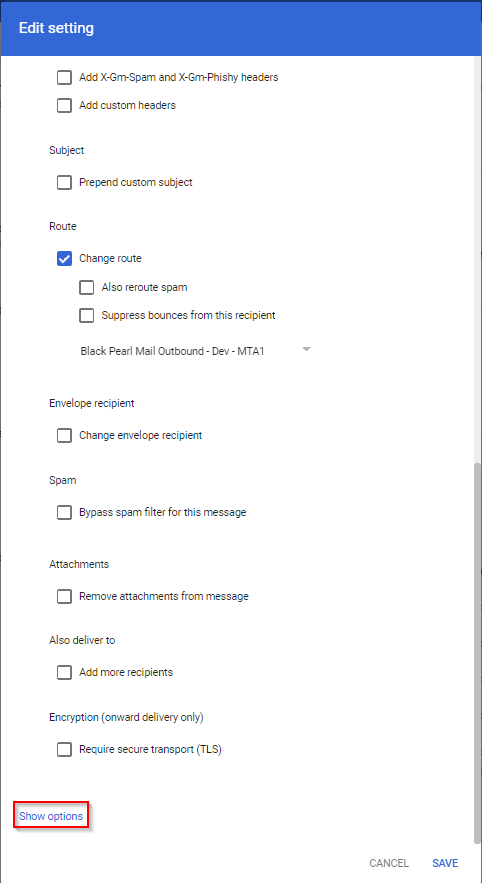
9) Scroll right down to the bottom of the rule and select Show options.
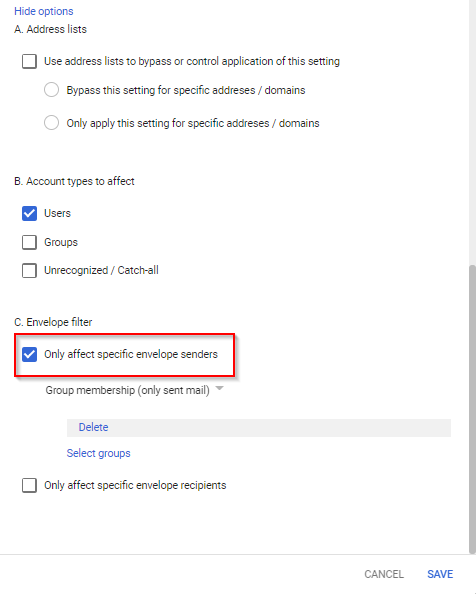
10) Scroll down to Envelope filter and tick the box next to Only affect specific envelope senders.
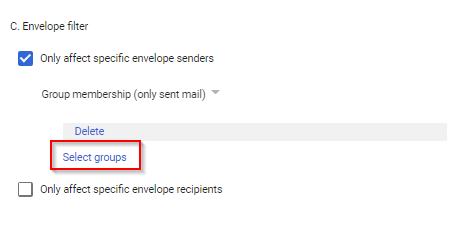
11) Click Select groups.
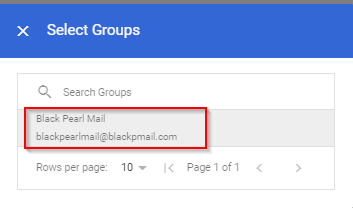
12) Select the Black Pearl Mail group we created in the previous steps.
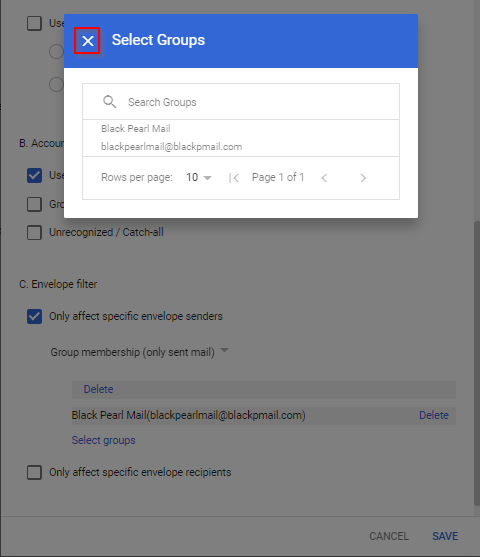
13) Click on the cross in the top left-hand corner.
14) Click Save.

That completes the settings needed in Google Workspace. All members of the Black Pearl Mail group are now configured to route with Black Pearl Mail. These settings can take up to an hour to complete.
Next, you'll want to create signature templates, add user details, and lastly turn on signatures for your users. We have great Getting Started articles that you can reference below.