
How to disable or remove your M365 Email Signature from Outlook (Desktop and Online Version)
Disable or remove your M365 Email Signature from Outlook (Desktop)
Step 1
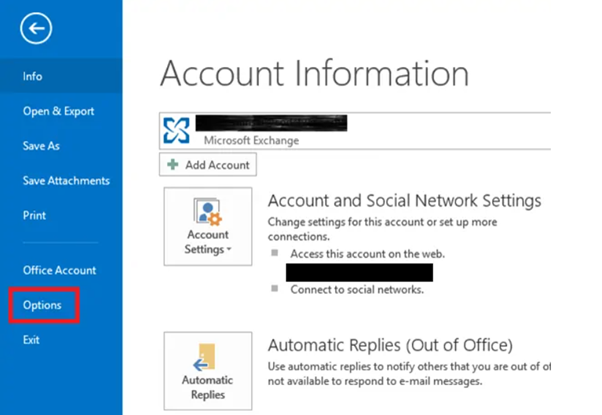
Open Outlook, click on File > Options.
Open Outlook, click on File > Options.
Step 2
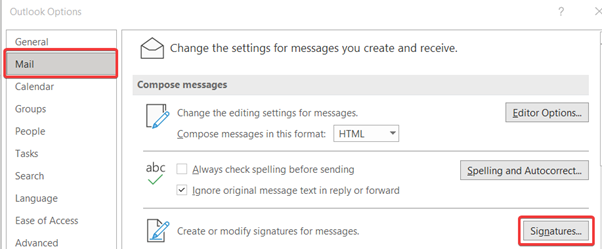
From the left menu, click Mail and then click the Signatures button on the right.
Step 3
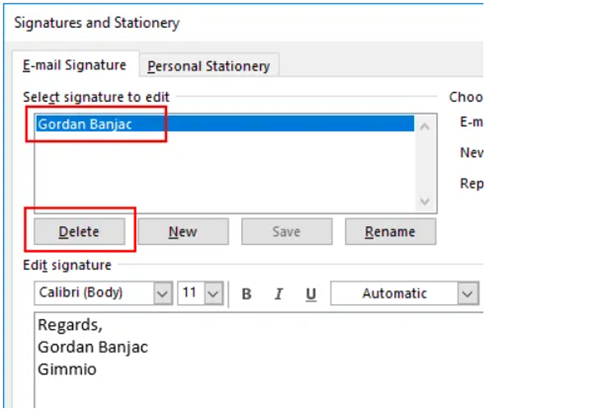
Select the signature you wish to remove. You can either click the Delete button to completely remove (shown below)
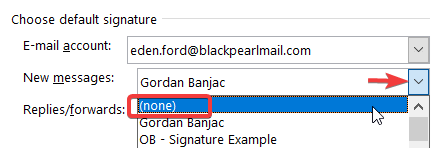
Or you can change the default signature to (none) for both New messages and Replies/forwards.
Disable or remove your M365 Email Signature from Outlook (Online)
Step 2
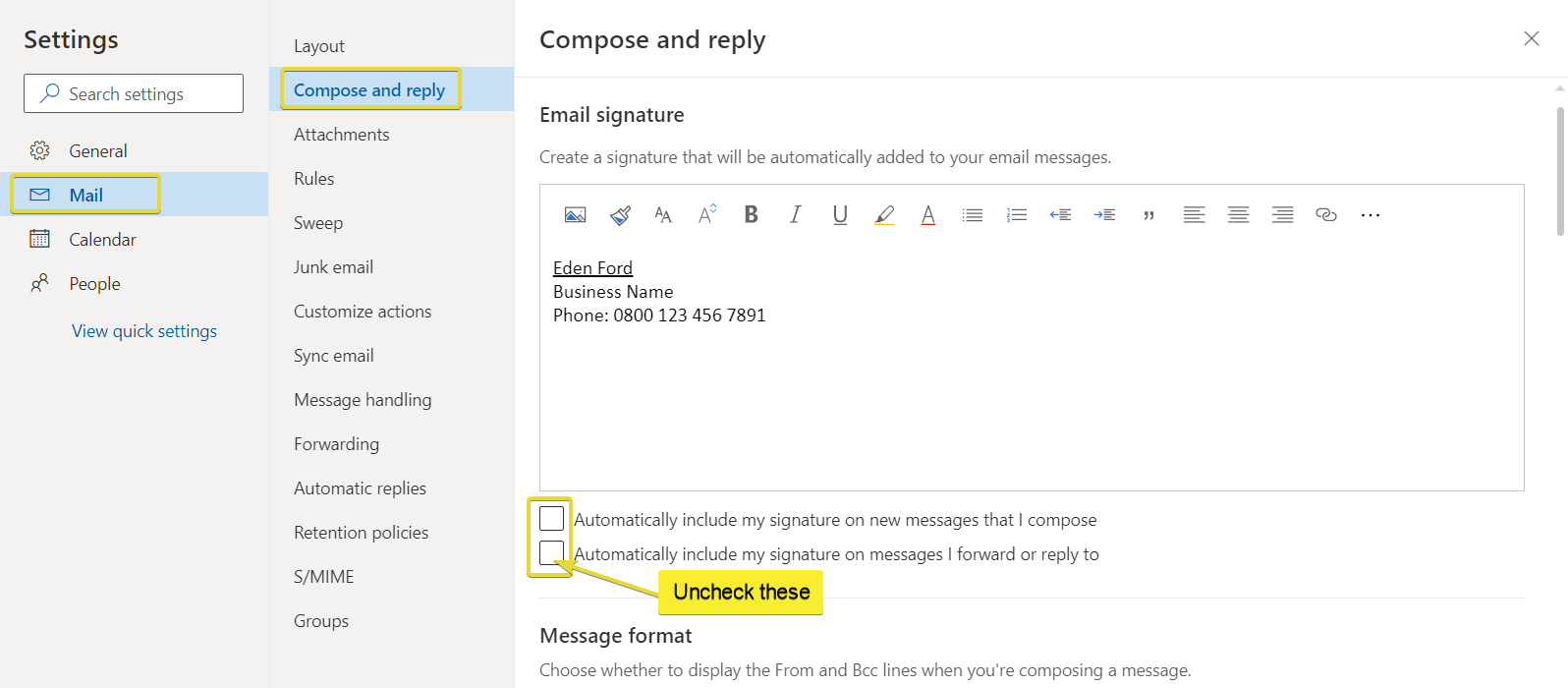
Go to Settings > View all Outlook settings > Compose and reply
Go to Settings
> View all Outlook settings > Compose and replyStep 3
Clear the check box for automatically including your signature.
Clear the check box for automatically including your signature.
If the instructions don't match what you see, you might be using an older version of Outlook on the web. Try the Instructions for classic Outlook on the web.