
The Black Pearl Mail admin portal has six main areas. Here's what each one is for.
Dashboard
The Dashboard tab gives you a 30-day snapshot of activity on your account, including the number of emails sent per day.
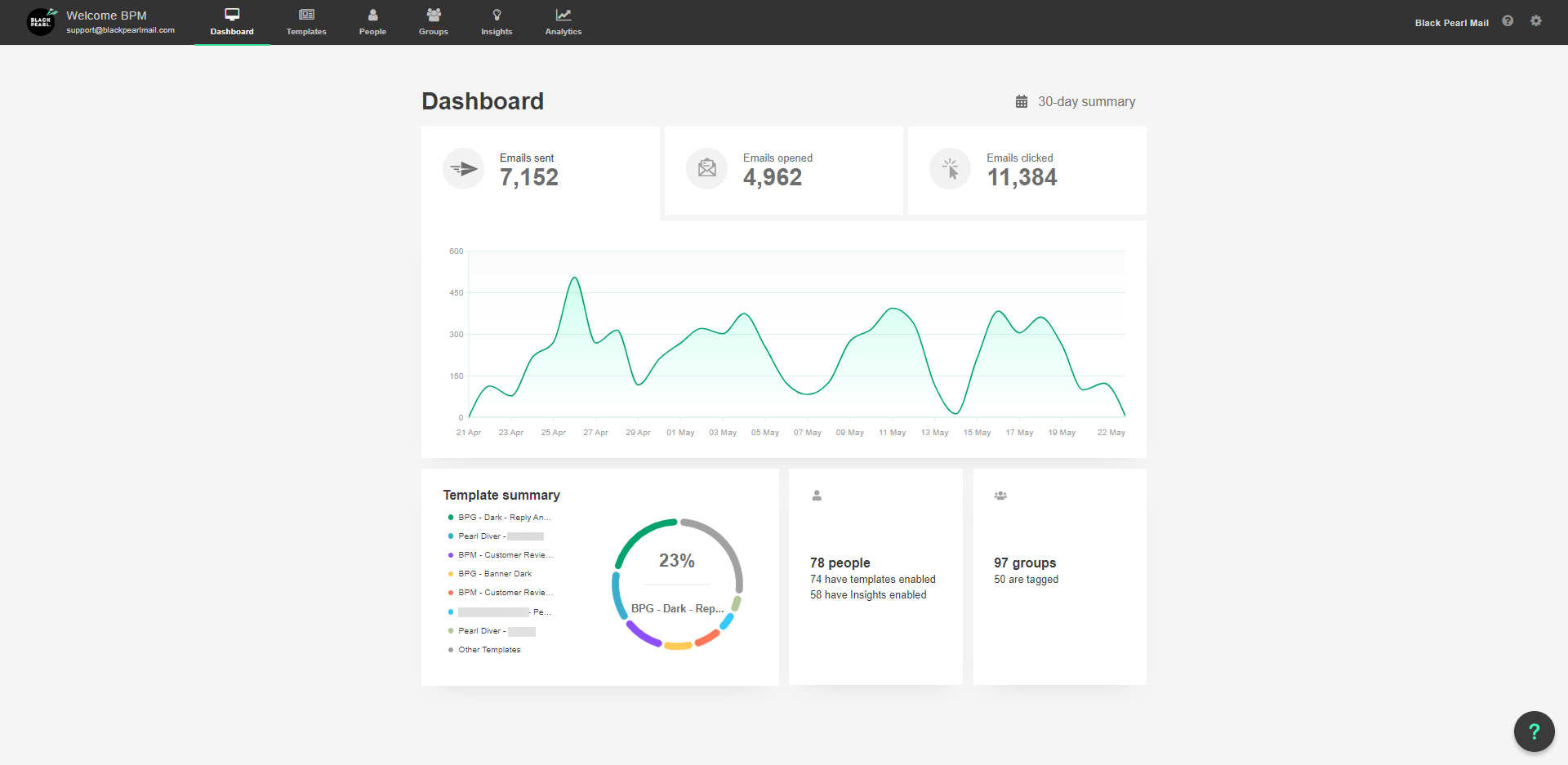
The Dashboard tab.
Templates
The Templates tab is where you design your email signatures. You set the layout, add links, and add branding such as logos and banners. You can create as many templates as you like.
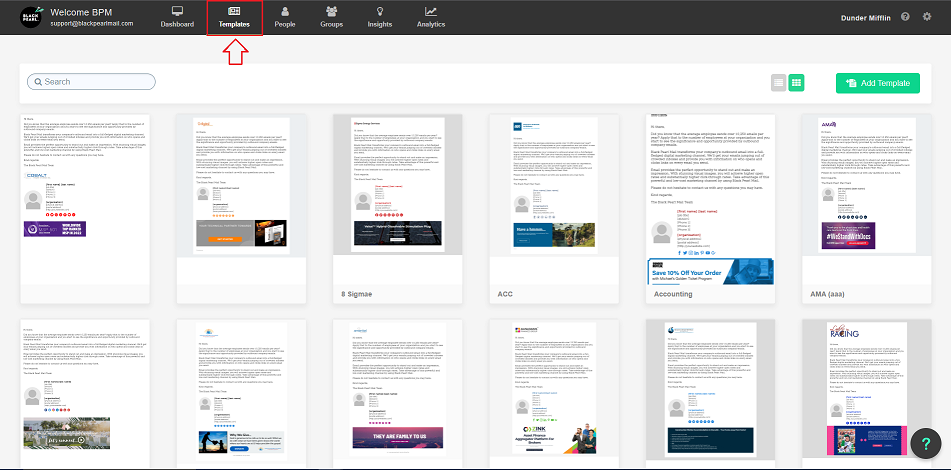
The Templates tab.
People
The People tab holds each user's signature details, such as job title, contact details, and personal social links like LinkedIn. Fill these in for them to appear in signatures.
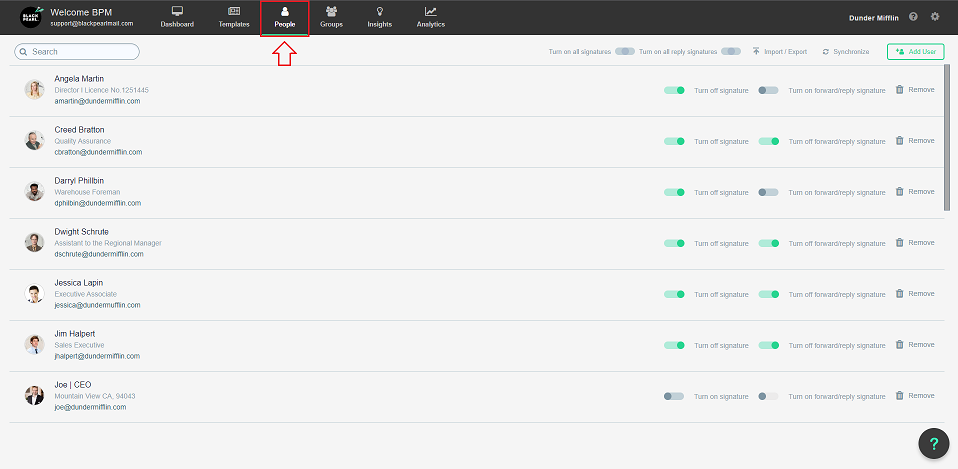
The People tab.
Groups
The Groups tab brings templates and people together. You assign a template to specific users here, and add shared details for a group, such as company social links or address.
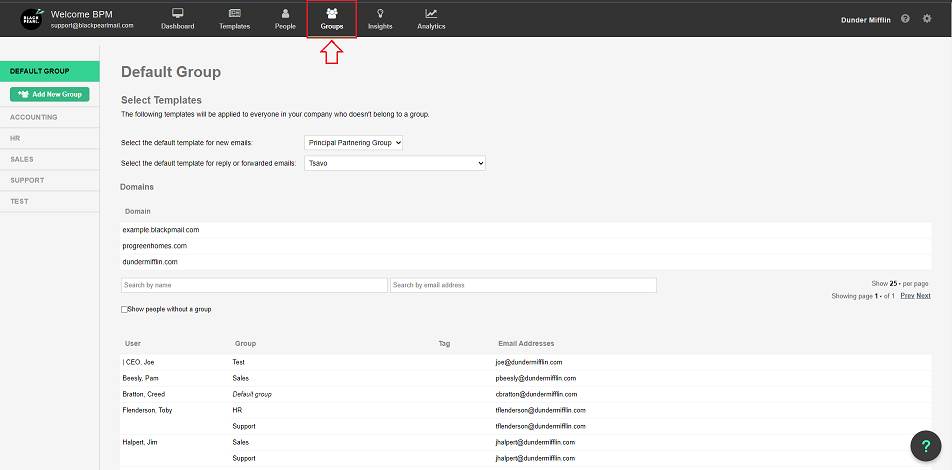
The Groups tab.
Analytics
The Analytics tab shows all the mail flowing through Black Pearl Mail. See how to read Track and Trace data.
Settings
Any signature detail missing from a user's profile or group comes from the Company Information fields in Company Settings. See the data hierarchy to learn what overwrites what.
New to Black Pearl Mail? See getting started with Black Pearl Mail.
Need help? Visit the Black Pearl Mail Help Centre or book a support session with the team.